Sync ModelScope-Hosted MCP Services
Log in to Kimi Playground (https://platform.kimi.ai/playground) and make sure you can have basic conversations with the Kimi K2 model. MCP services are added in “MCP Server Settings”, where ModelScope is selected as the default MCP service provider. If you haven’t used the ModelScope MCP marketplace before, first refer to the ModelScope official documentation to select and host your MCP services; you can also discover numerous MCP servers in the ModelScope community.Open MCP Server Settings
Click the configuration button to open “MCP Server Settings”: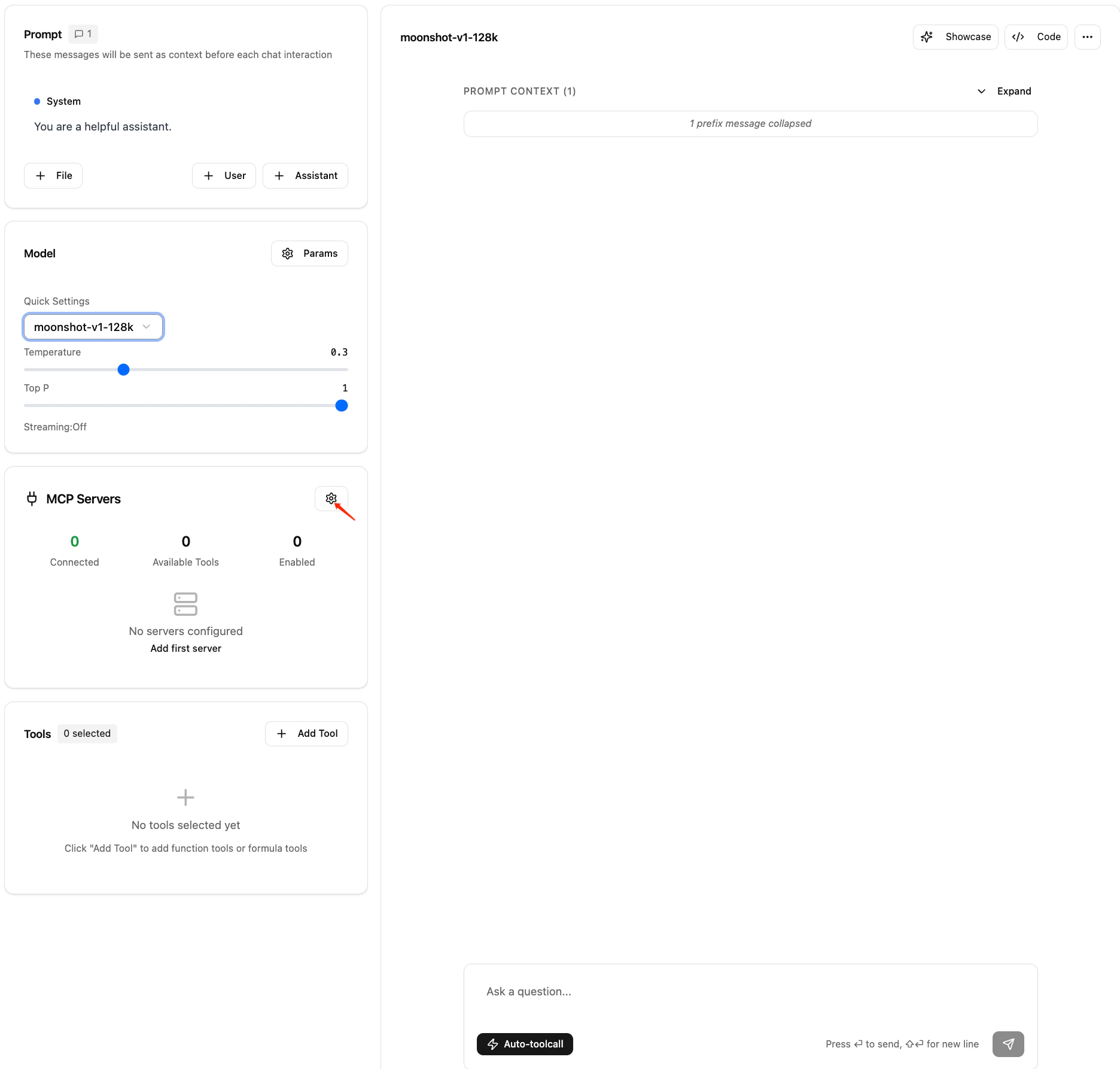
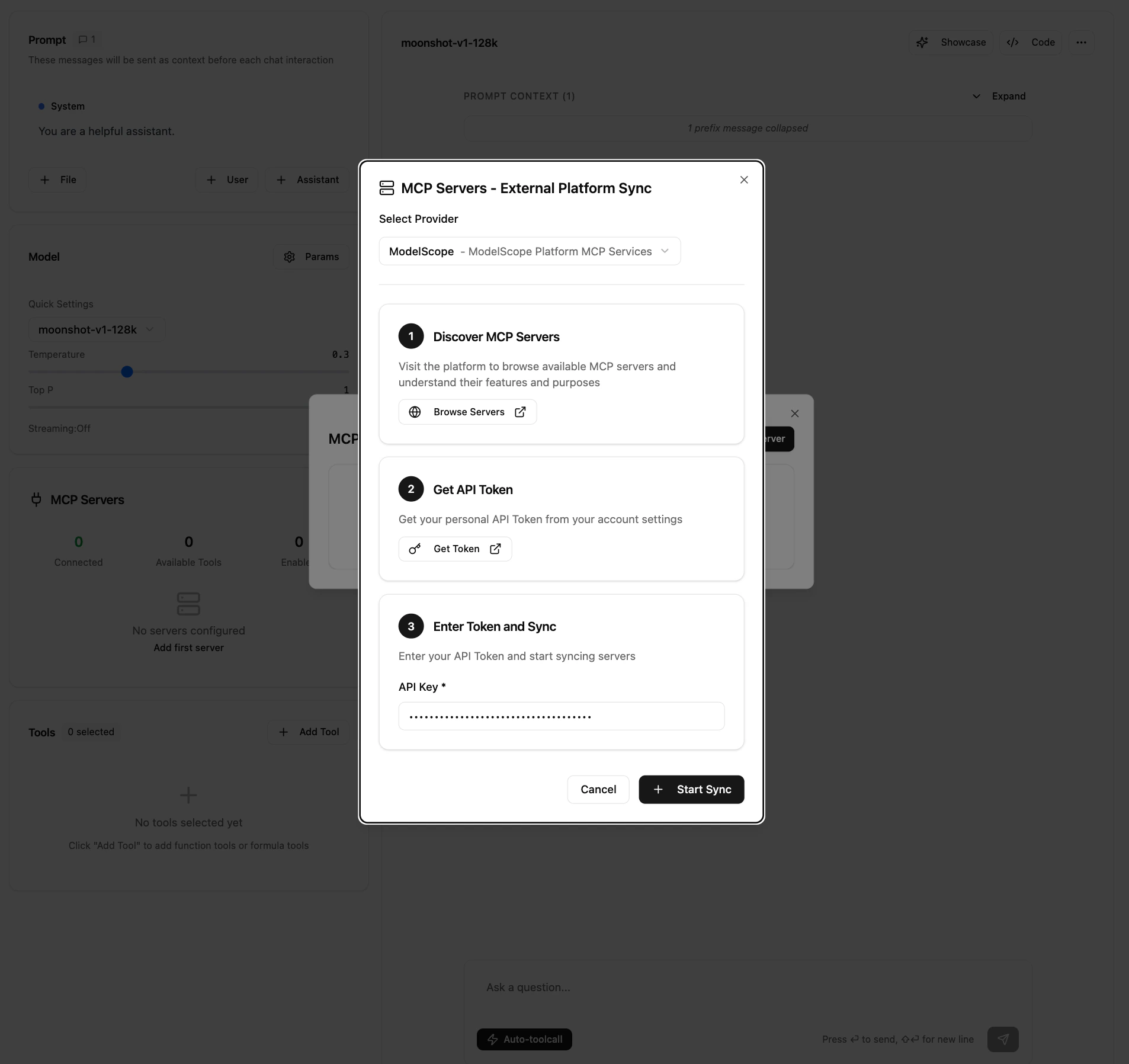
Enter Your ModelScope API Token and Sync
In the panel that appears, choose to sync with the external platform: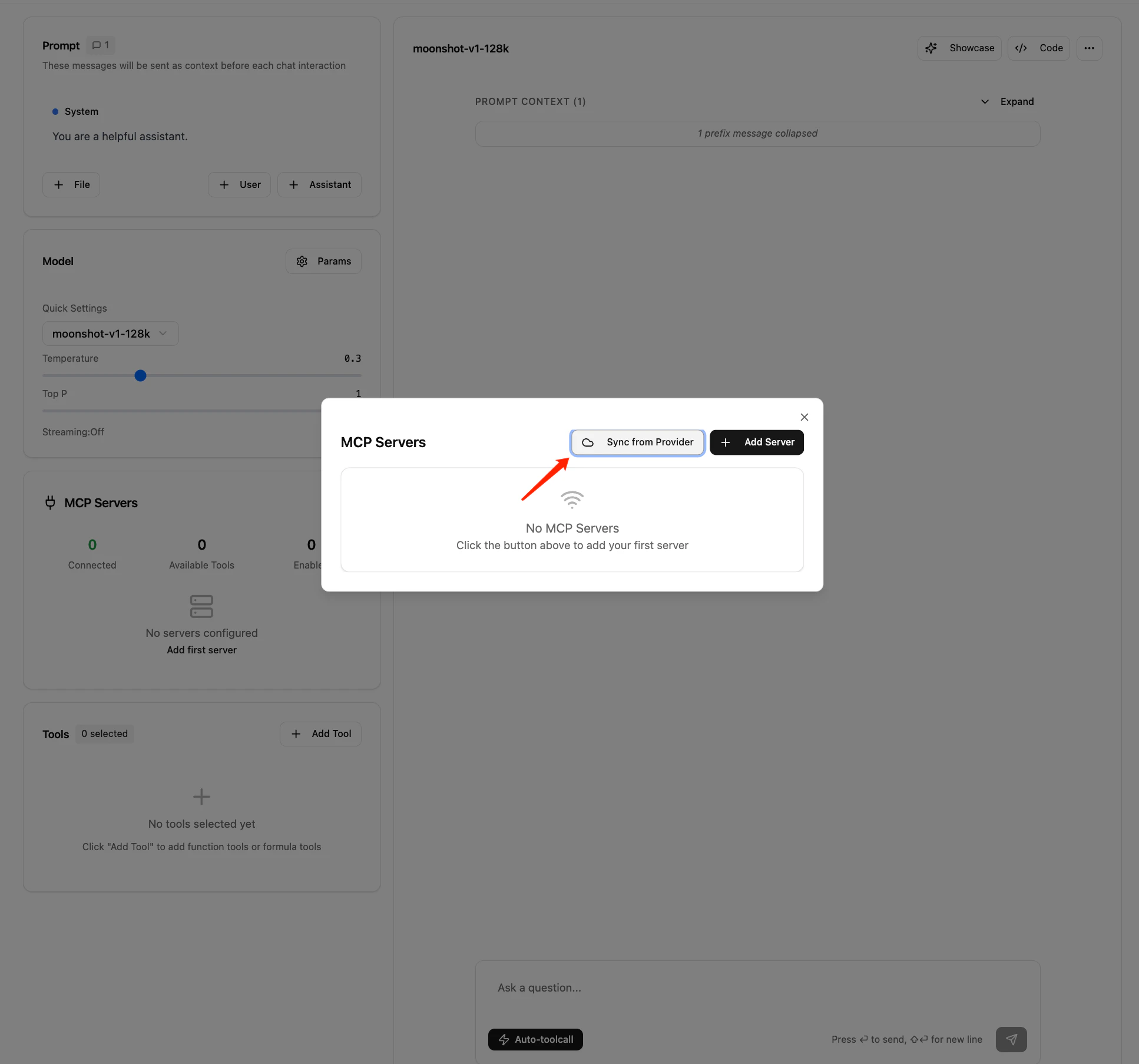
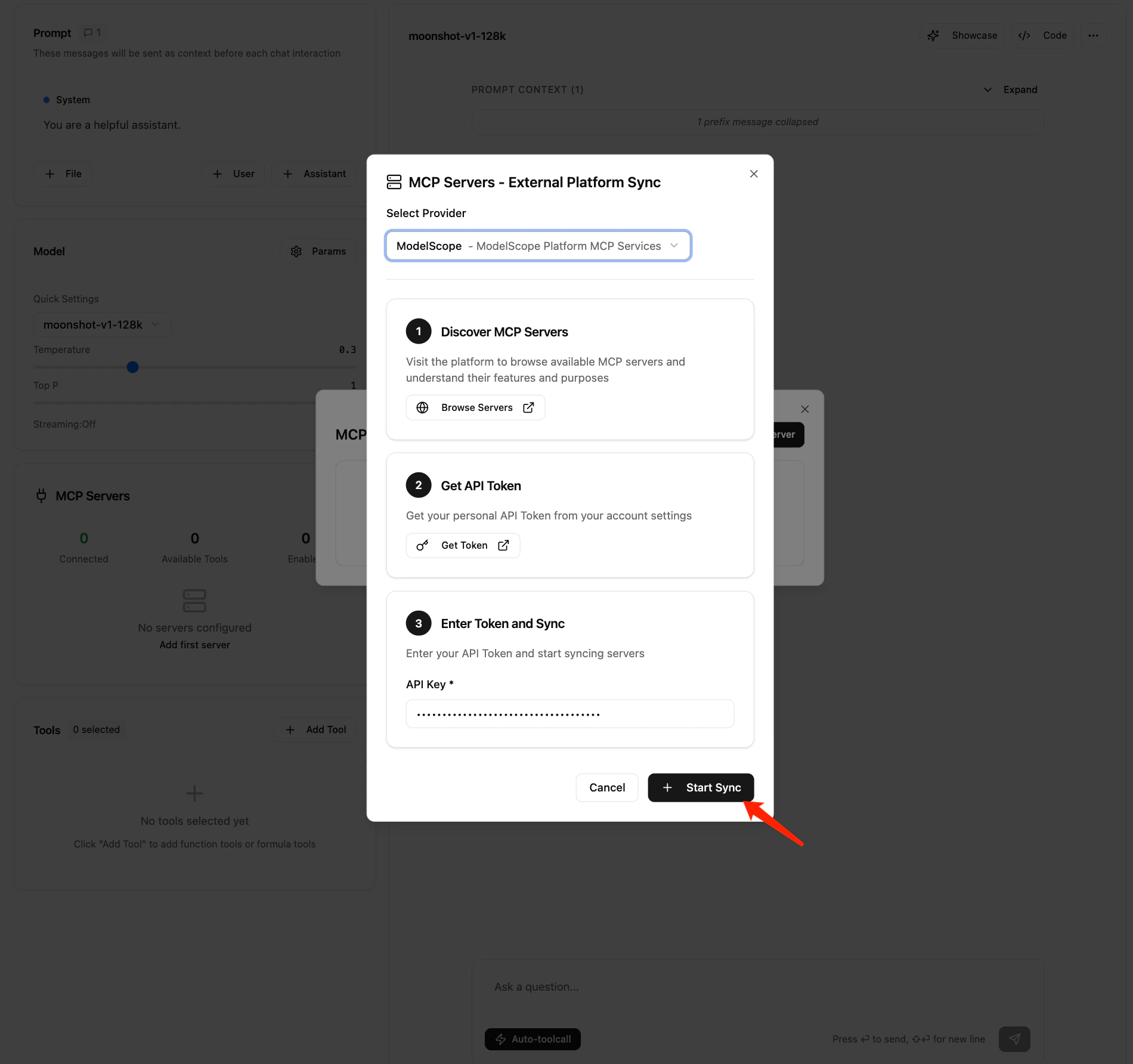
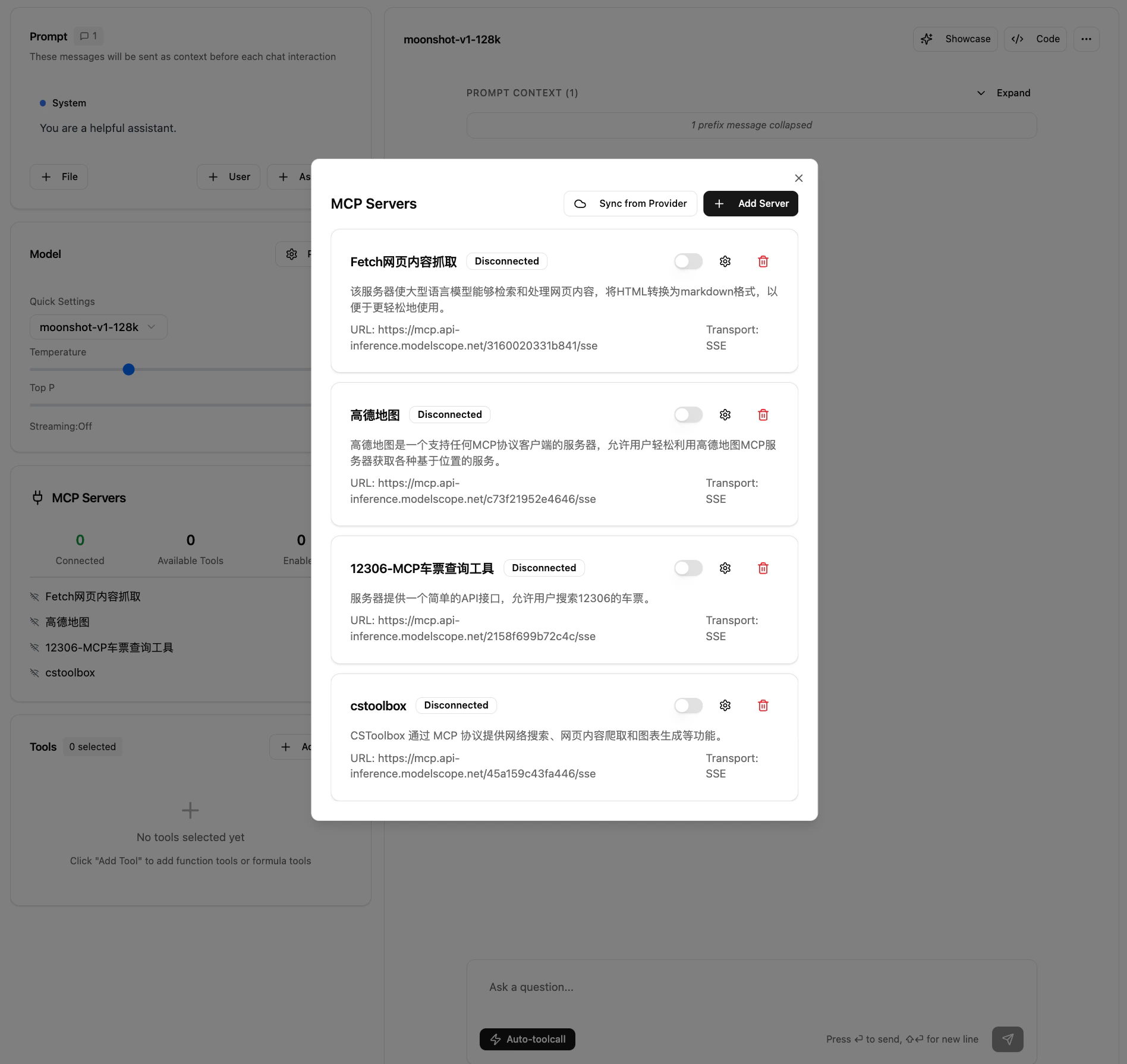
Incrementally Sync MCP Services
If you later add or remove hosted MCP services in the ModelScope MCP marketplace, click the sync button in “Settings - MCP Server - Sync Server” to perform an incremental update: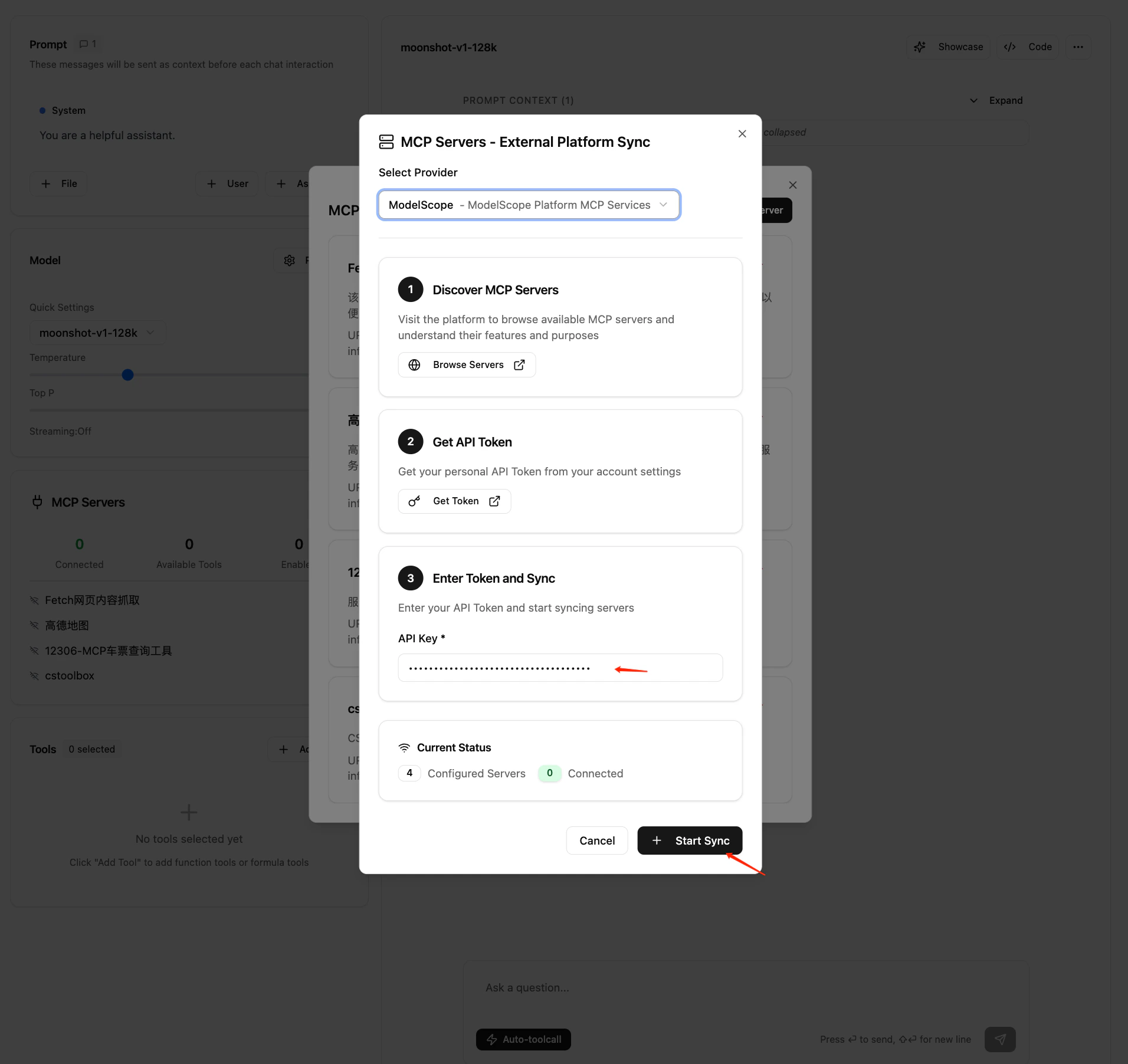
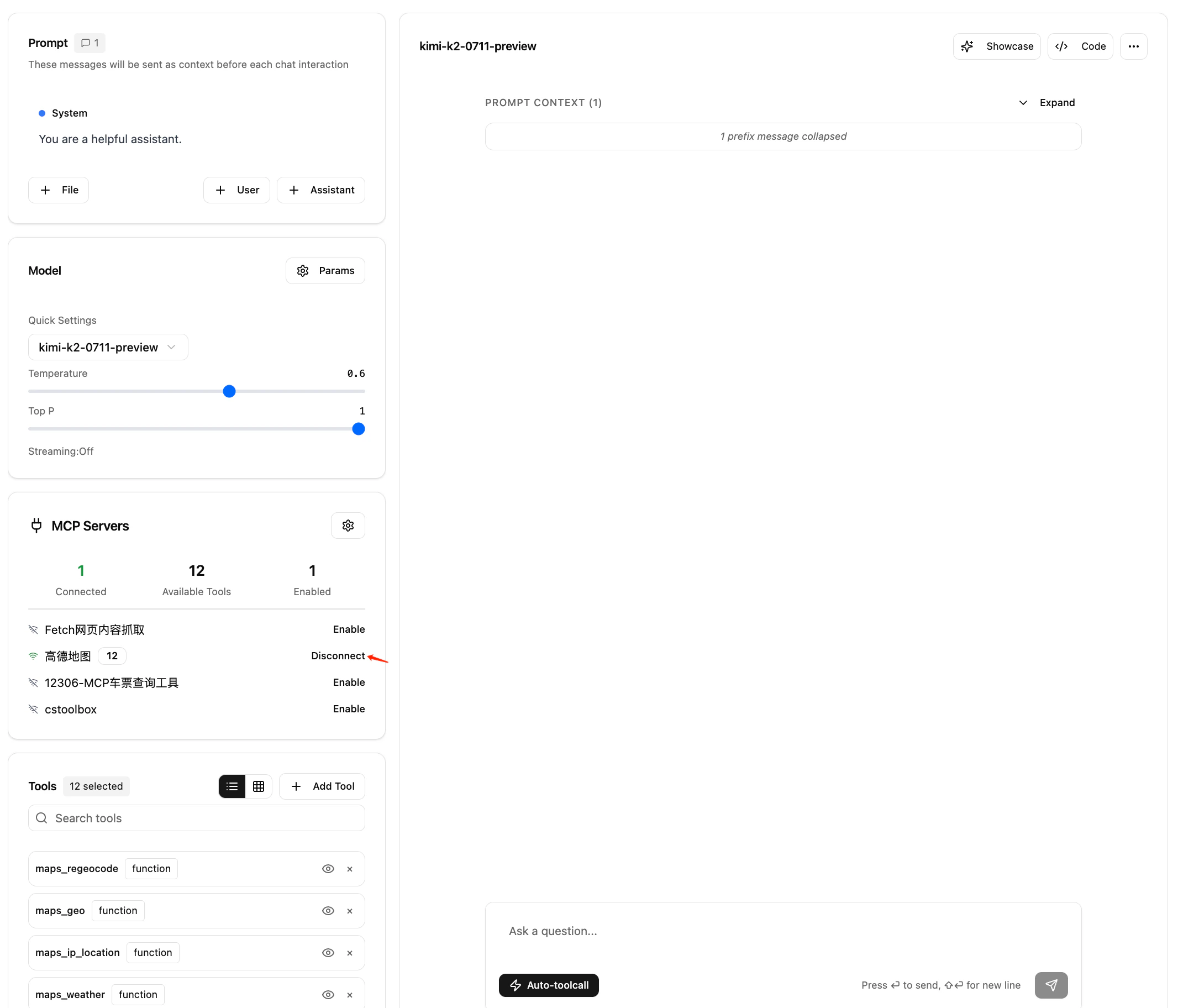
Enable MCP Services in a Conversation
After syncing, the imported “MCP Services List” appears on the left side of the Kimi Playground page. Multi-select and enable the MCP services you want to use in the current conversation: